

In the last two posts, I described two plugins for the Cheshire Cat AI agent, developed for a chatbot that serves as a first-level help desk for an IT support website.
One of the plugins introduces guards that filter incoming questions and outgoing answers [5], while the other checks the status of monitored services using the Uptime Kuma software [6].
The system was tested by submitting a series of questions taken from real requests received by email at the Help Desk, for which we already knew the answers, and evaluating the quality of the responses obtained. We soon realized that we needed a way to keep track of the responses and the chatbot’s behavior to analyze it in detail.
Were the guards doing their job? Were the tools being invoked? Was the integration with Uptime Kuma working? From which documents did a response originate?
At first, we tried plugins like Langfuse Connector and Ragas Retriever Evaluator, but we needed something more specific, also to verify that the two developed plugins worked as expected. This monitoring system was born from that need.

System Components
The system consists of three parts:
- RAG Interaction Logger [2]: a plugin for Stregatto that records every interaction (a question and its corresponding answer) between the user and the chatbot. It is a simple observer: it does not modify messages or responses and writes to the database in a separate thread, so a database problem does not slow down or block the conversation.
- RAG Interaction Logger Monitor [1]: a WordPress plugin that acts as the system’s back office. It reads the recorded data, calculates statistics, highlights anomalies, and allows examination of individual interactions. It performs read-only queries and is accessible only to site administrators.
- A MySQL or MariaDB database with the ril_interactions table, where the first plugin writes and the second reads.
System Features
For each interaction, the logger saves a row with:
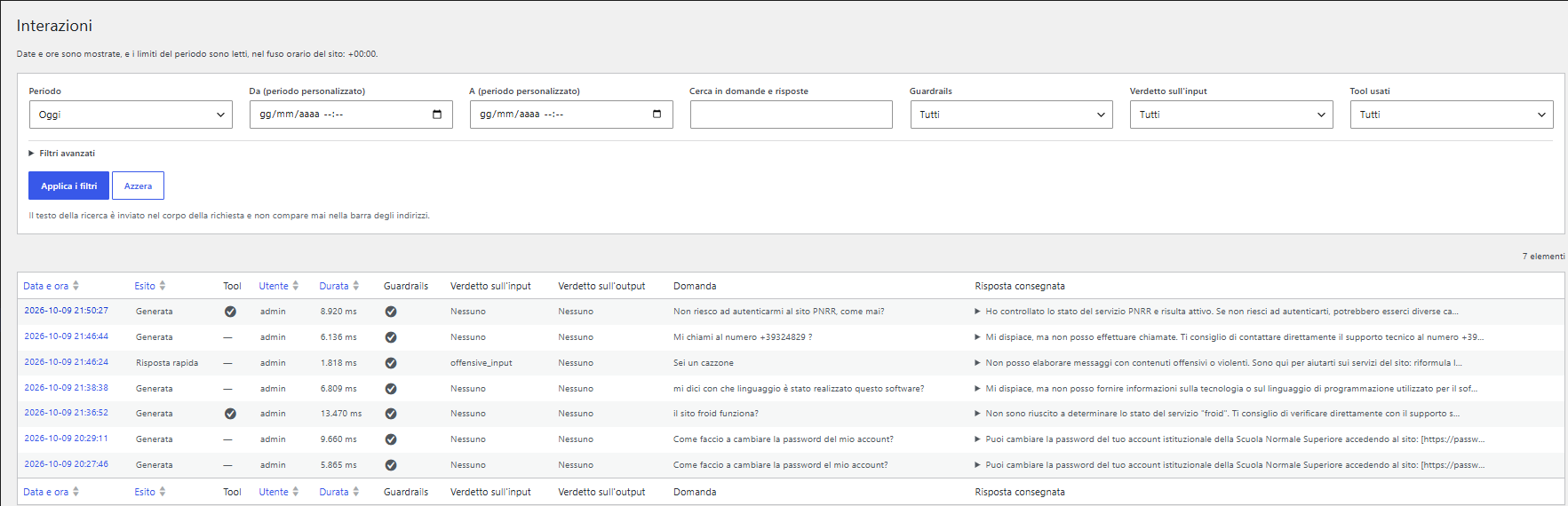
- date, duration, user, and outcome of the turn: response generated by the LLM, response provided directly by a plugin without passing through the LLM, or incomplete turn;
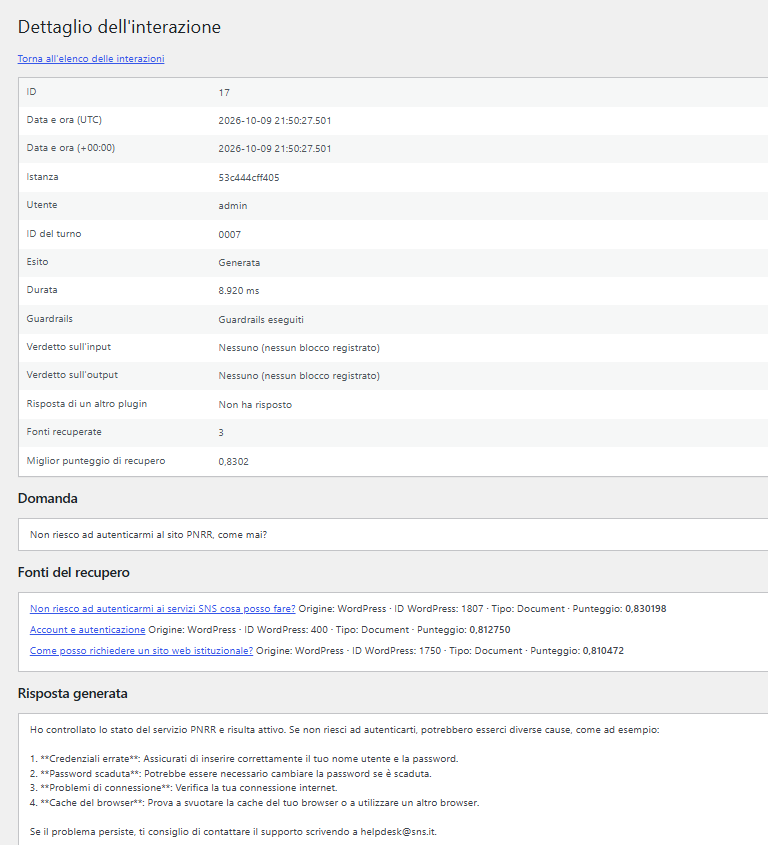
- the question, the response generated by the LLM, and the response delivered to the user: if they differ, something intervened between generation and delivery;
- the presence of RAG Guardrails and the verdicts of the guards on the question and the answer;
- the number of documents retrieved from memory, the best score, and the metadata of the sources (title, URL, WordPress ID, type), never their text;
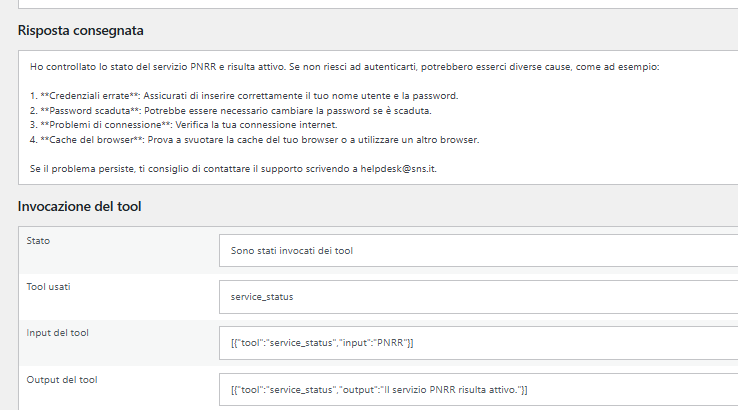
- the tools invoked and, if enabled in the settings, the input and output text of each tool.
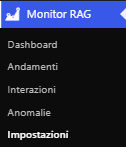
The WordPress back office adds the RAG Monitor menu, with these sections:
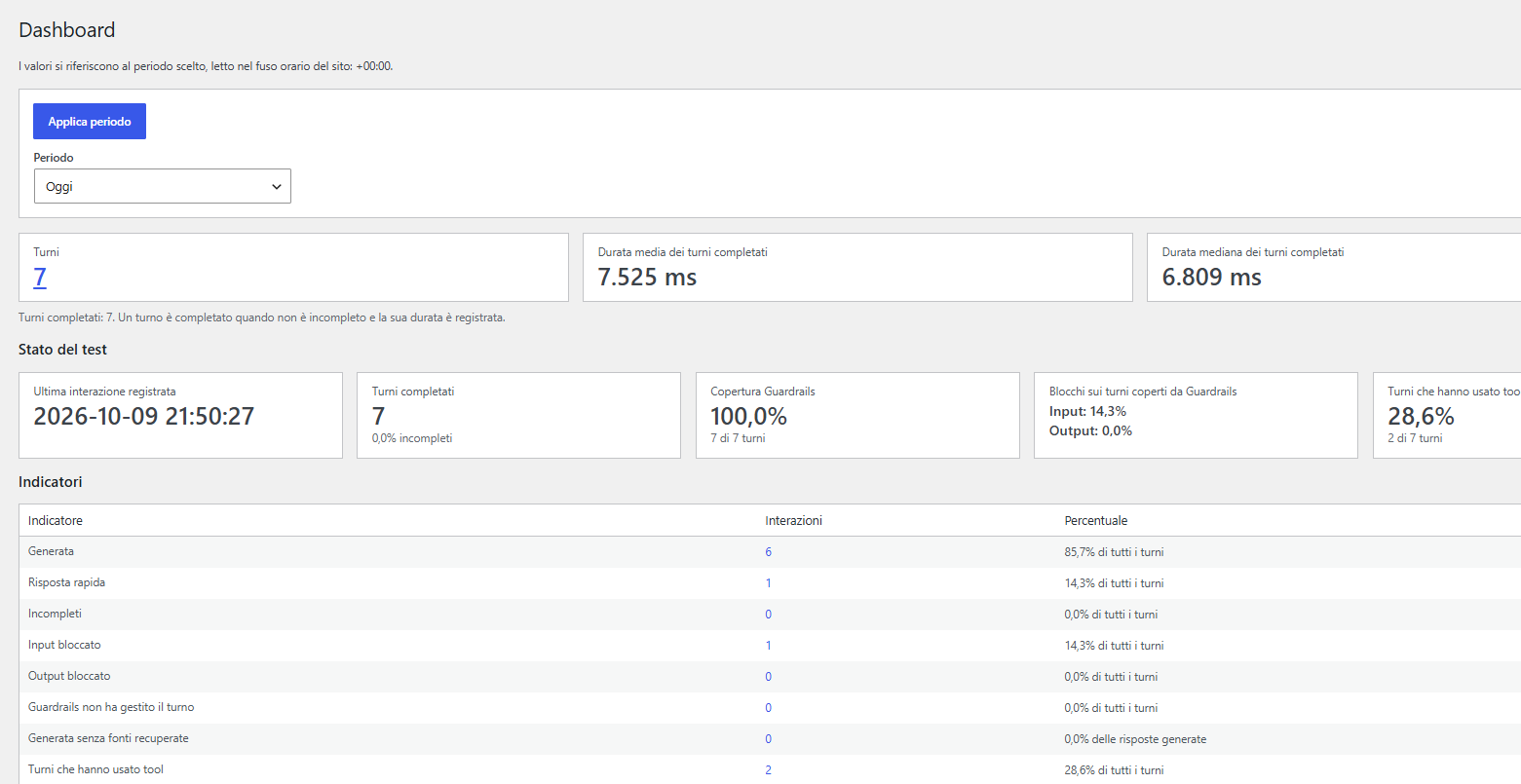
- Dashboard: number of turns, durations, indicators (generated responses, direct responses, incomplete turns, guard blocks, recall, tools), usage of each tool, and blocks by verdict. The Test Status panel summarizes the last recorded interaction, guard coverage, block percentage, and tool invocation percentage.
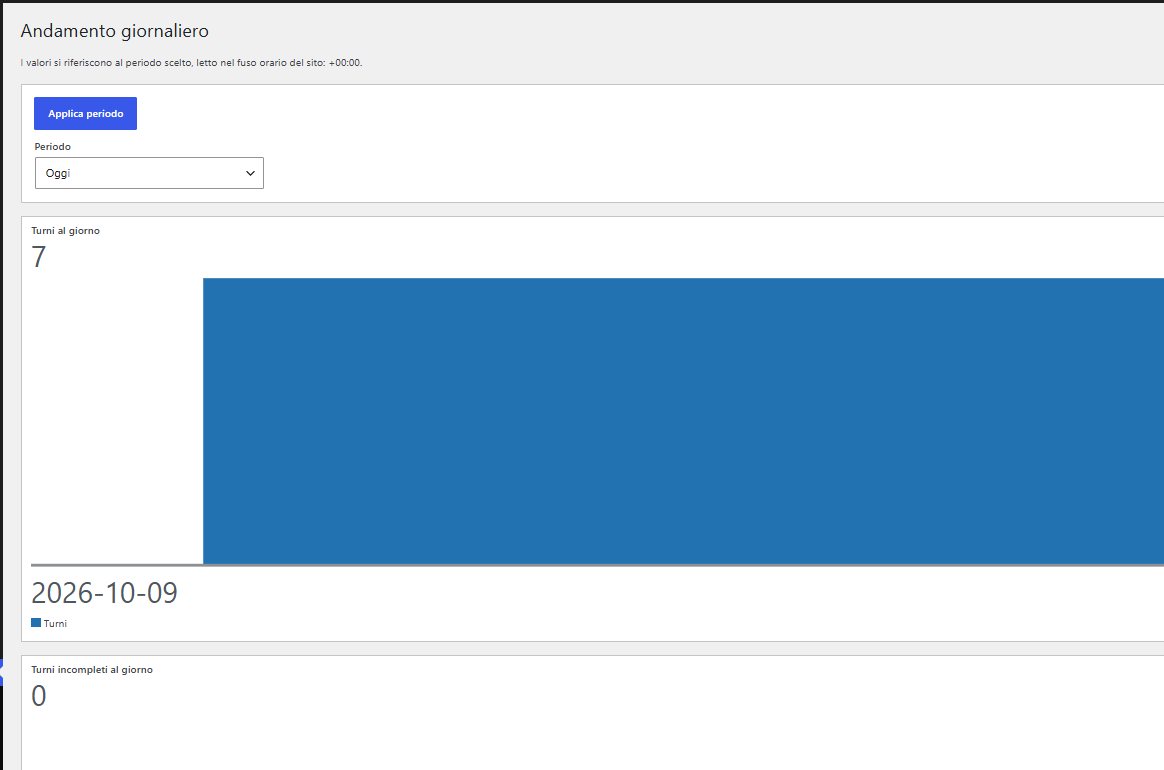
- Trends: the same data over time, grouped by day, week, or month depending on the selected period.
- Interactions: a paginated list of interactions, with filters and text search.
- Details: all fields of a single interaction, with a comparison between generated and delivered responses and the list of sources used.
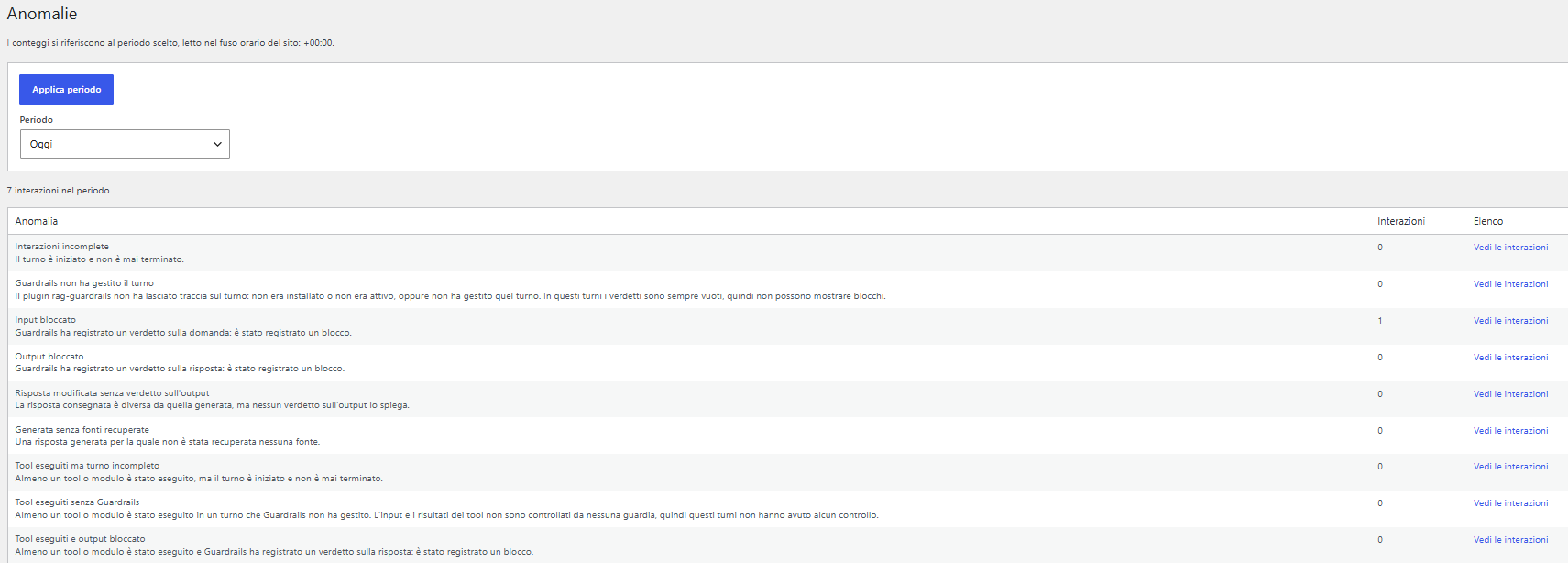
- Anomalies: predefined views that lead to already filtered lists, for example incomplete turns, turns without guards, input or output blocks, responses modified without an output block, generated responses without any retrieved document, tools invoked in incomplete or blocked turns.
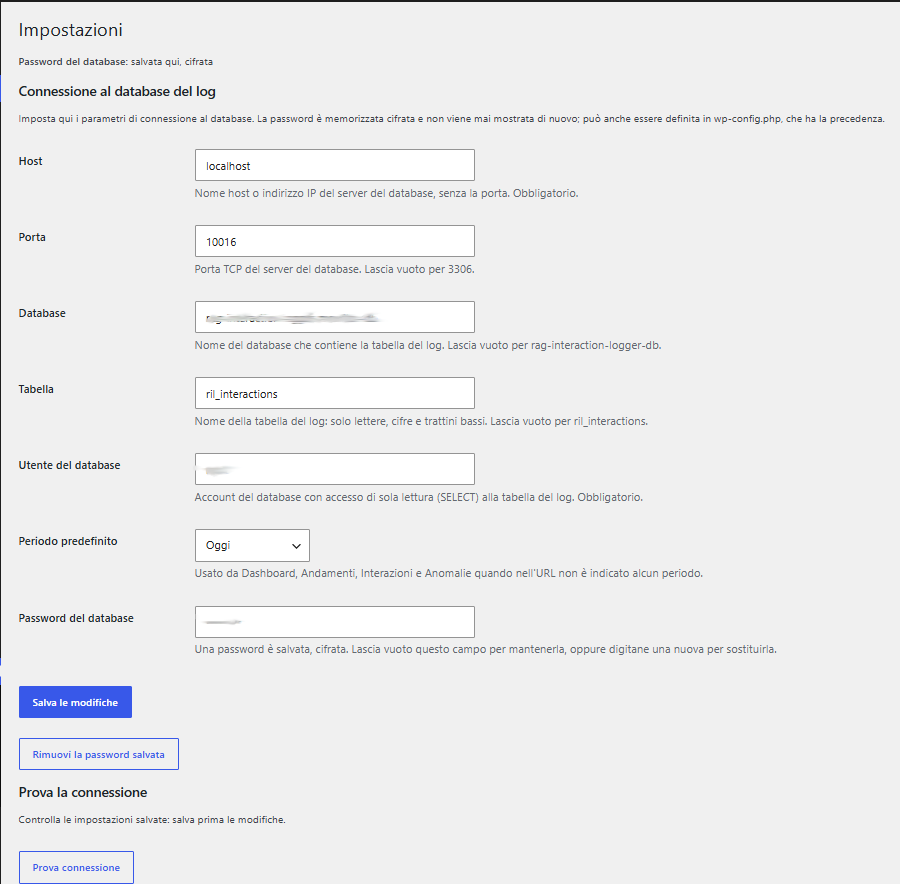
- Settings: database connection parameters.
The interface is available in Italian and English.
Creating the Database on MySQL
The two components exchange data through the ril_interactions table in a MySQL (8.0 or 8.4) or MariaDB (10.4 or later) database, named by default rag-interaction-logger-db. The database.md file of the Stregatto plugin describes the creation of the database, table, and users. The table can also be created automatically by the plugin on first connection.
Two distinct users are needed:
- a user for the logger (e.g., ril_logger), with permissions to create, write, and delete in the database;
- a user for the monitor (e.g., ril_monitor), with read-only permission (
SELECT) on the table.
The data to configure the two plugins are: host, port, and database name, table name (default: ril_interactions), whether the server requires SSL (preferably it does), and username and password for the two users.
Installing the Plugin for Cheshire Cat AI
The plugin was developed for Cheshire Cat AI 1.9.2 [4] and is available in the Stregatto plugin registry:
- In the admin panel, open the Plugins section and search for RAG Interaction Logger;
- Install and activate it;
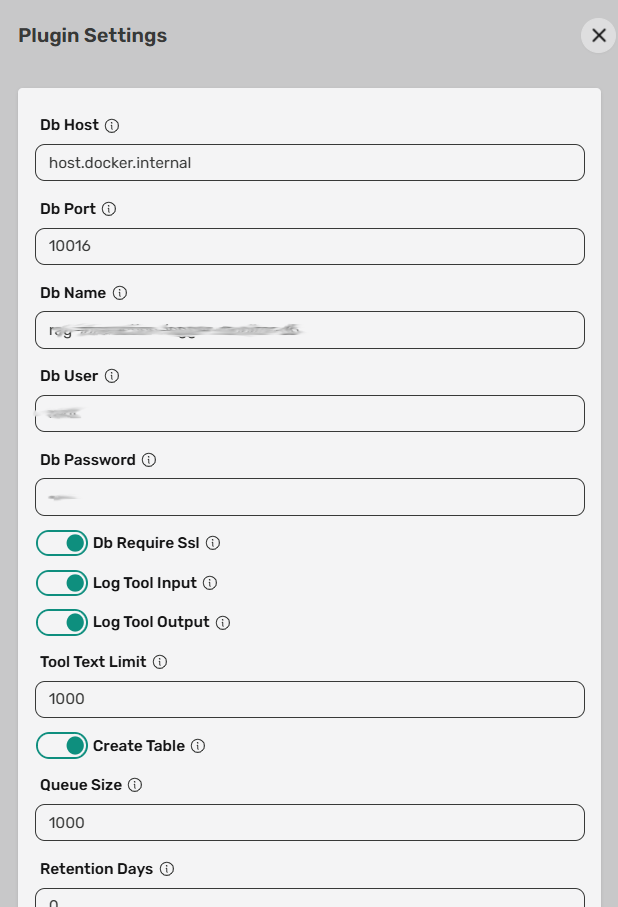
- Open the plugin settings and enter
db_host,db_port,db_name,db_user, anddb_passwordfor the ril_logger user, leavingdb_require_sslenabled if the server uses SSL, then save; - Check that the Stregatto log shows the message
RAG Interaction Logger: Database check passed; - Ask a question to the chatbot and verify it was recorded:
SELECT * FROM ril_interactions ORDER BY id DESC LIMIT 1;
Other settings include log_tool_input and log_tool_output, disabled by default, to also save texts exchanged with the tools, and retention_days, to automatically delete rows older than a certain number of days (with 0 all are kept).
Installing and Configuring the WordPress Plugin
The plugin requires WordPress 7.1 or later and PHP 8.3 with the sodium extension. It is not published in the official plugin directory, so you need to build the package from the repository (requires PHP with the zip extension):
git clone https://github.com/ScuolaNormaleSuperiore/rag-interaction-logger-monitor.git
cd rag-interaction-logger-monitor
composer build
The command creates the file dist/rag-interaction-logger-monitor-<version>.zip. Then:
- In WordPress, go to Plugins → Add New Plugin → Upload Plugin, select the zip file, install and activate it;
- Open RAG Monitor → Settings and enter host, port, database name, table name, and credentials for the ril_monitor user.
The password is saved encrypted and is no longer shown. Alternatively, parameters can be defined as constants in wp-config.php, which override the settings page values:
define( 'ICT_RAG_MONITOR_DB_HOST', 'db.example.org' );
define( 'ICT_RAG_MONITOR_DB_USER', 'ril_monitor' );
define( 'ICT_RAG_MONITOR_DB_PASSWORD', '<password>' );
If the database user requires SSL, you must also define MYSQL_CLIENT_FLAGS in wp-config.php, because the plugin uses the site’s connection settings.
Conclusions
The monitoring system does not depend on RAG Guardrails or Uptime Kuma Connector, so it can be used with any chatbot based on Cheshire Cat AI 1.9.2. If guards are present, their verdicts are recorded; otherwise, those fields remain empty.
In our case, it was precisely useful to answer the questions we started from: the comparison between generated and delivered responses shows when and why a guard intervened, the list of invoked tools confirms whether the service check with Uptime Kuma was used, and the retrieved sources explain where a response originates.
The system is designed for testing and debugging phases, not for production. Writing is asynchronous and without retries, so if the database is unreachable, some interactions may be lost. Also, questions and answers may contain personal data: it is advisable to restrict access to the table and define a retention period with retention_days.
It is easy to test the entire system locally with Cheshire Cat AI on Docker and WordPress installed on Local.
Plugin Screenshots




Sources and References
- RAG Interaction Logger Monitor, the WordPress plugin.
- RAG Interaction Logger, the plugin for Cheshire Cat AI.
- Cheshire Cat AI, official website.
- Cheshire Cat AI, repository of version 1.9.2 (the version for which the plugin was developed).
- RAG Guardrails for the Big Cat, on this blog.
- Uptime Kuma Connector for the Big Cat, on this blog.
*** Note: This article was automatically translated using a workflow created with n8n and OpenAI. The original version of the post is the Italian one.