
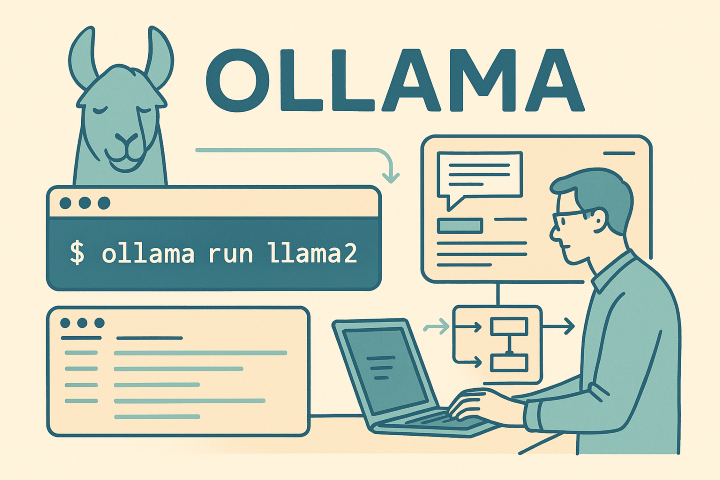
LM Studio is a very effective system for testing on your own PC, but for creating more complex prototypes or small applications, it is worth considering other systems: Ollama is one of them.
Description and Features of Ollama
Ollama is a cross-platform engine that allows running an LLM (Large Language Model) on a server, container, or virtual machine.
Like LM Studio, it allows you to search for models, download them (in the usual GGUF format), run them, and query them.
Unlike LM Studio, it does not have a graphical interface for direct model querying, but you can install separate web interfaces such as OpenWeb UI.
The model can be queried via command line, a Python library, or using an HTTP API.
Installation and Configuration
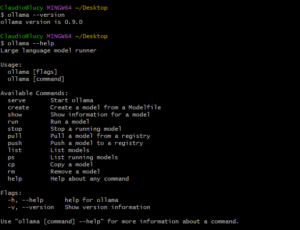
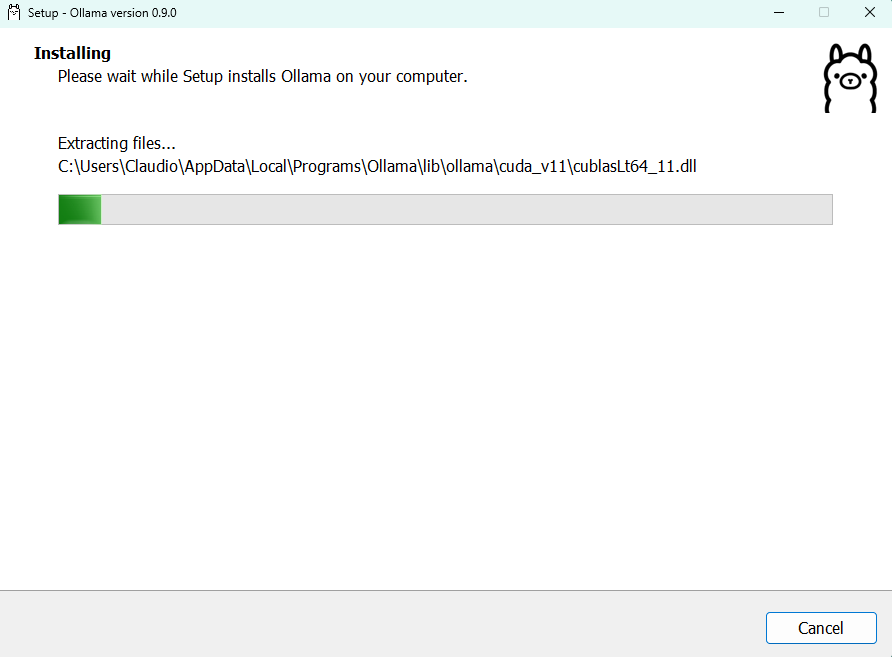
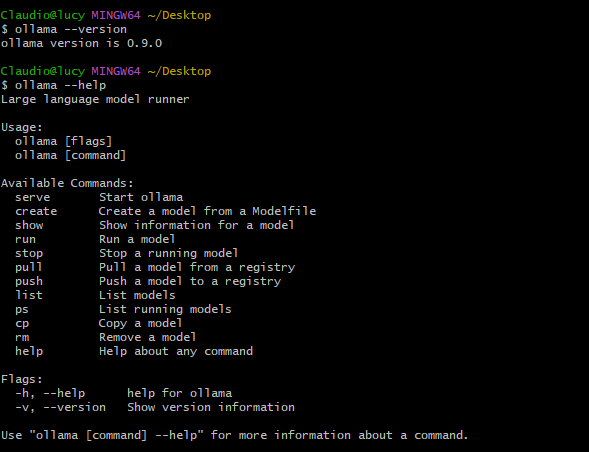
To install Ollama on Windows, simply download the executable from the official website [1] and run it. Even if the installation interface closes without notice, it does not mean the program is not installed correctly. To verify, open a shell and run the command: ollama –version.
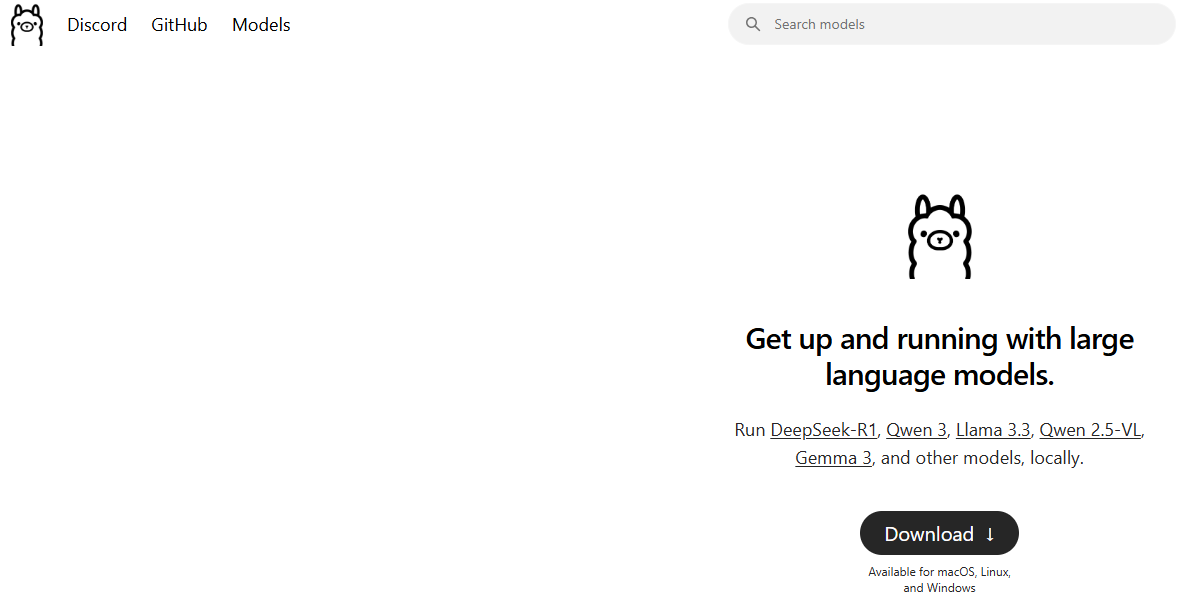
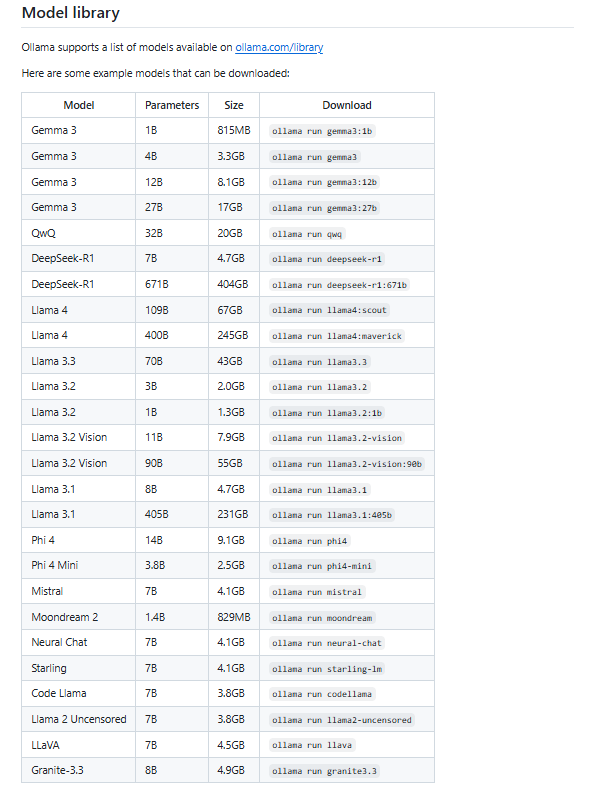
From the Ollama website [1] or its GitHub page [2], you can see the list of available and compatible models.
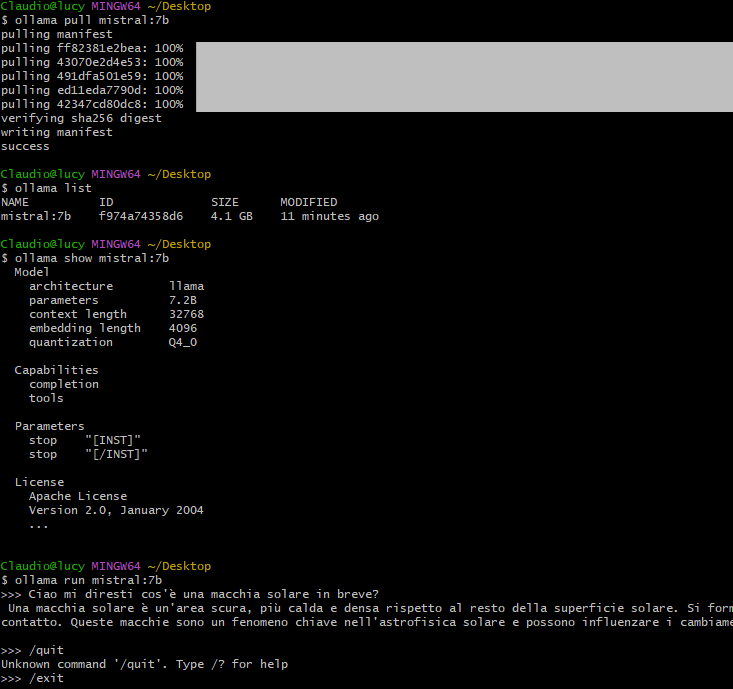
With the following sequence of commands, you can download and run a model:
ollama --version
ollama --help
ollama pull mistral:7b     # Download the model.
ollama list               # List downloaded models.
ollama show mistral:7b    # Model details.

# Option 1: Run a model and open the query shell:
ollama run mistral:7b &

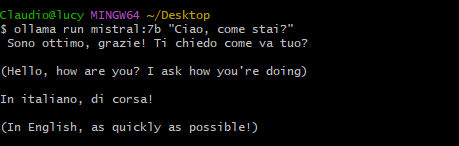
# Option 2: Example query:
ollama run mistral:7b "What are sunspots?"
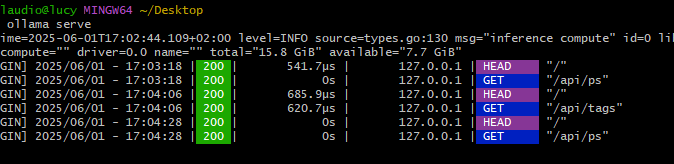
On Windows, running Ollama commands starts a program running in the background (service) that responds to all requests sent to a model. On Linux, the command to start the daemon is:
ollama serve
This command can also be used on Windows if for some reason the service did not start automatically.
In any case, it is the Ollama service (daemon) that responds to all requests sent either from the command line, via HTTP, or through the Python library.
Ways to Interact with the Model
In summary, you can interact with the Ollama daemon in three ways:
- Via command line.
- Through an HTTP API.
- Using the ollama Python library.
To use Ollama in an application, the preferred method is 3 (Python library), but you can also use any other programming language by using any HTTP call library (method 2).
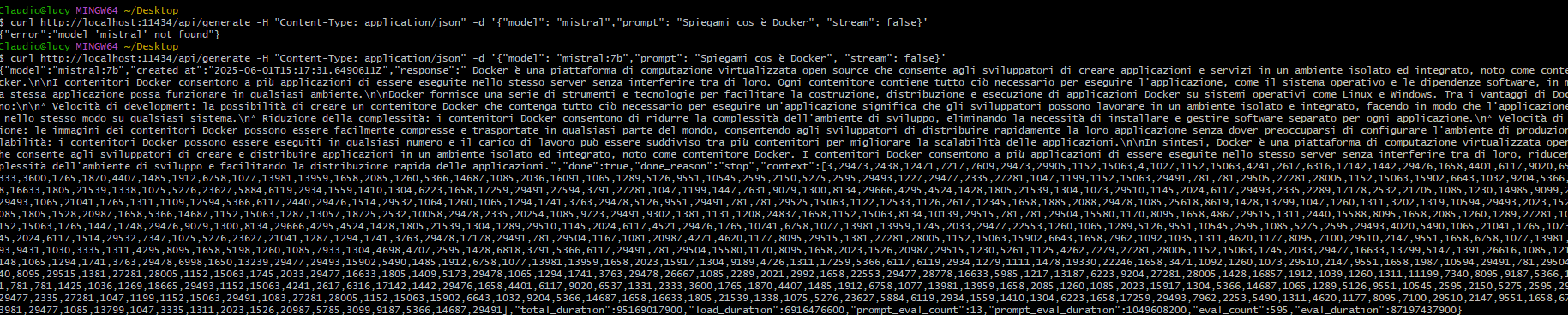
Some examples of HTTP requests:
curl http://localhost:11434/api/version
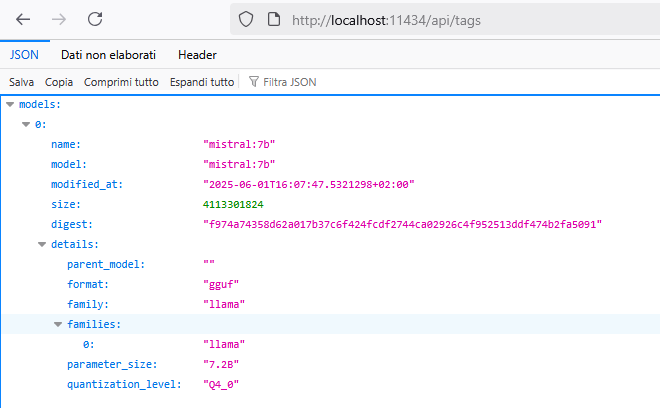
curl http://localhost:11434/api/tags
curl http://localhost:11434/api/generate -H "Content-Type: application/json" -d '{"model": "mistral","prompt": "Explain what Docker is", "stream": false}'
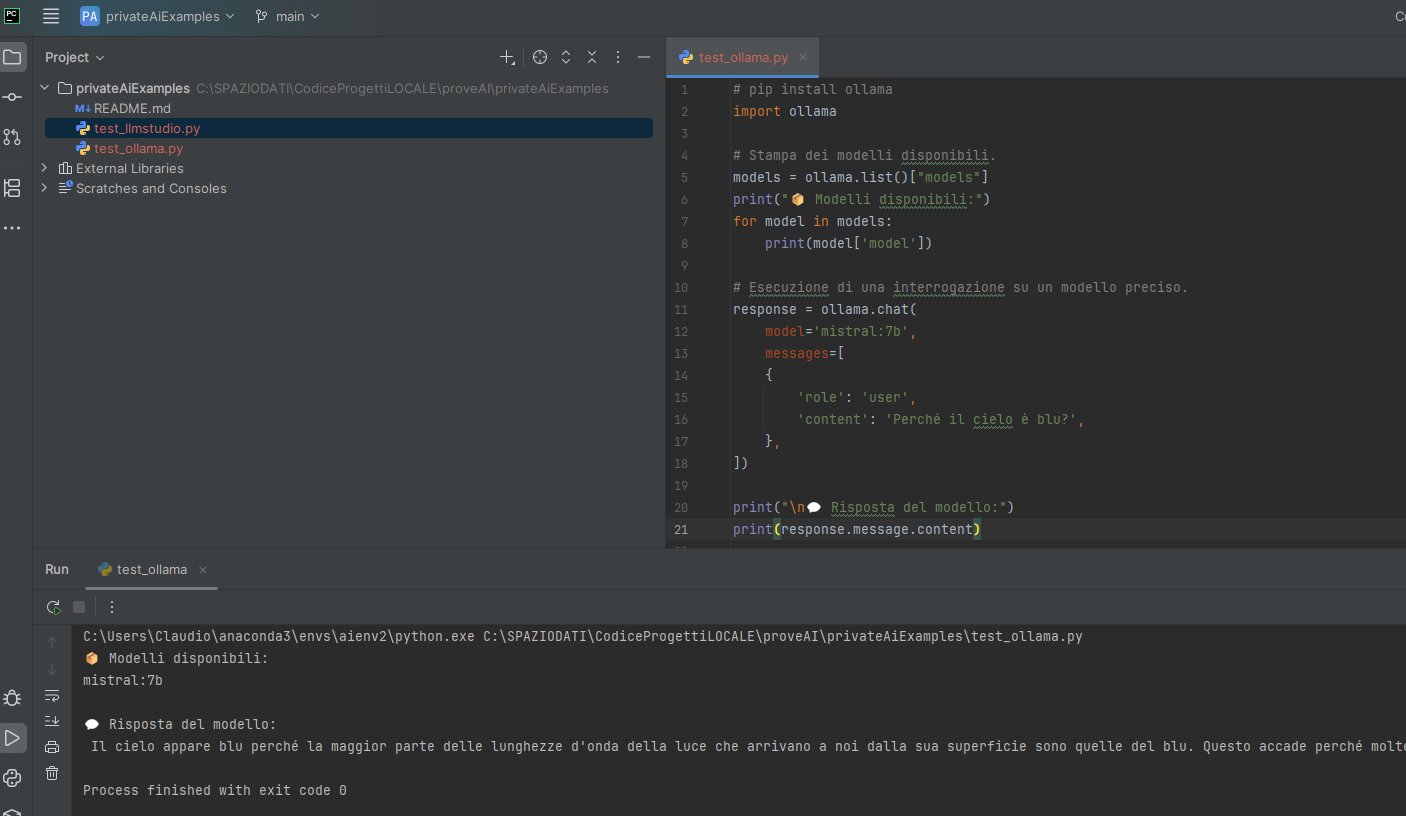
An example of Python code:
# Print available models.
models = ollama.list()["models"]
print("Available models:")
for model in models:
  print(model['model'])

# Run a query on a specific model.
response = ollama.chat(
  model='mistral:7b',
  messages=[
  {
    'role': 'user',
    'content': 'Why is the sky blue?',
  },
])

print("\n💬 Model response:")
print(response.message.content)
Conclusions
While LM Studio is the preferred solution for testing on your own computer, Ollama can be used for prototypes and simple applications.
For large-scale commercial applications, other options can be considered: vLLM, llama.cpp, Text Generation Interface (TGI), FastChat, OpenLLM, DeepSpeed-MII, Candle.
Image Gallery
Sources and References
- Official website of Ollama.
- Ollama on GitHub, repository with instructions and list of available models.
- What is Ollama? Running Local LLMs Made Simple, IBM Technology.
- Run AI Models Locally with Ollama: Fast & Simple Deployment, IBM Technology.
- Analysis of Ollama Architecture and Conversation Processing Flow for AI LLM Tool by Rifewang on Medium.
- Learn Ollama in 15 Minutes – Run LLM Models Locally for FREE by Tech with Tim on YouTube.
- Ollama: How to Run an LLM Locally on Your PC by Simore Rizzo on YouTube.
- Official website of OpenWeb UI.
- Retrieval Augmented Generation (RAG): How to Use Specialized Domain Data with LLMs, on this blog.
- How to Run a Local LLM Model with LM Studio, on this blog.
- Querying Bard / PaLM from Google with Python, on this blog.
- Querying OpenAI’s ChatGPT with Python, on this blog.
*** Note: This article was translated using an automated workflow built with n8n and OpenAI.